Notifications Panel
The Notifications panel allows users to manage different types of pending notifications in the Zennio Remote application.
Accessing the Notifications Panel
To access the notifications panel, the user must tap the button located in the top-right corner of the main screen.
When there are pending notifications, a counter will appear over the icon indicating the total number of unmanaged notifications.
The notifications panel also opens automatically when:
- An authorization request push notification is received and the user taps on it
- The user opens the application and there are pending authorization requests
Types of Notifications
Currently, the notifications panel displays:
Active Alarms
The panel displays all active alarms from paired devices. Active alarms are those in enabled or confirmed state.
Information displayed:
- Alarm status (enabled, confirmed)
- Alarm description
- Device name
- Representative icon according to the alarm type and status
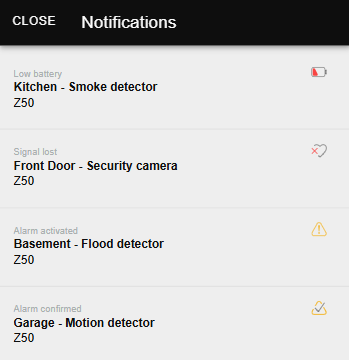
For more information about alarm types and their states, see Device Management - Alarms.
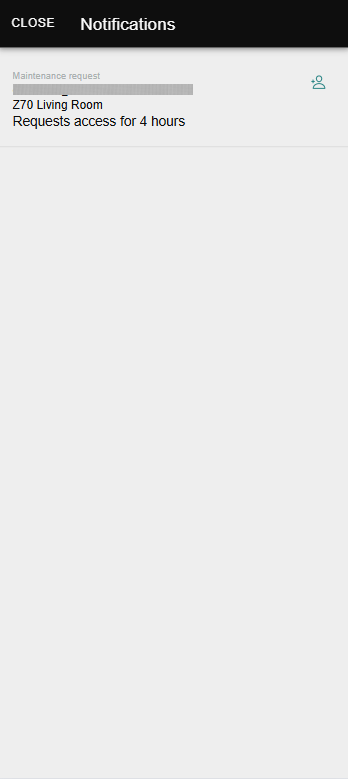
Technician Pairing Authorization Requests
Users with a registered account and standard pairing on a device will receive requests when a technician requires authorization to temporarily access that device.
Information displayed:
- Technician's account requesting access
- Device name
- Requested access duration (between 1 and 8 hours)
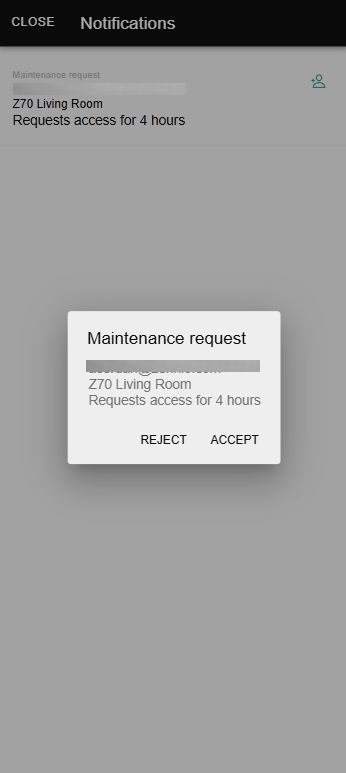
Available actions:
- Tap on a request
- Accept or reject the authorization request
- The technician will receive a push notification with the result
Empty State
When there are no pending notifications, the panel will display the message:
No notifications.
The notification counter will disappear when all notifications have been managed or when active alarms have been disabled.